How to Set Up a Complete Live TV Streaming Setup at Home
Build a complete live TV streaming setup at home. Choose hardware, internet speed, streaming services, and accessories for the best experience.
Anúncios
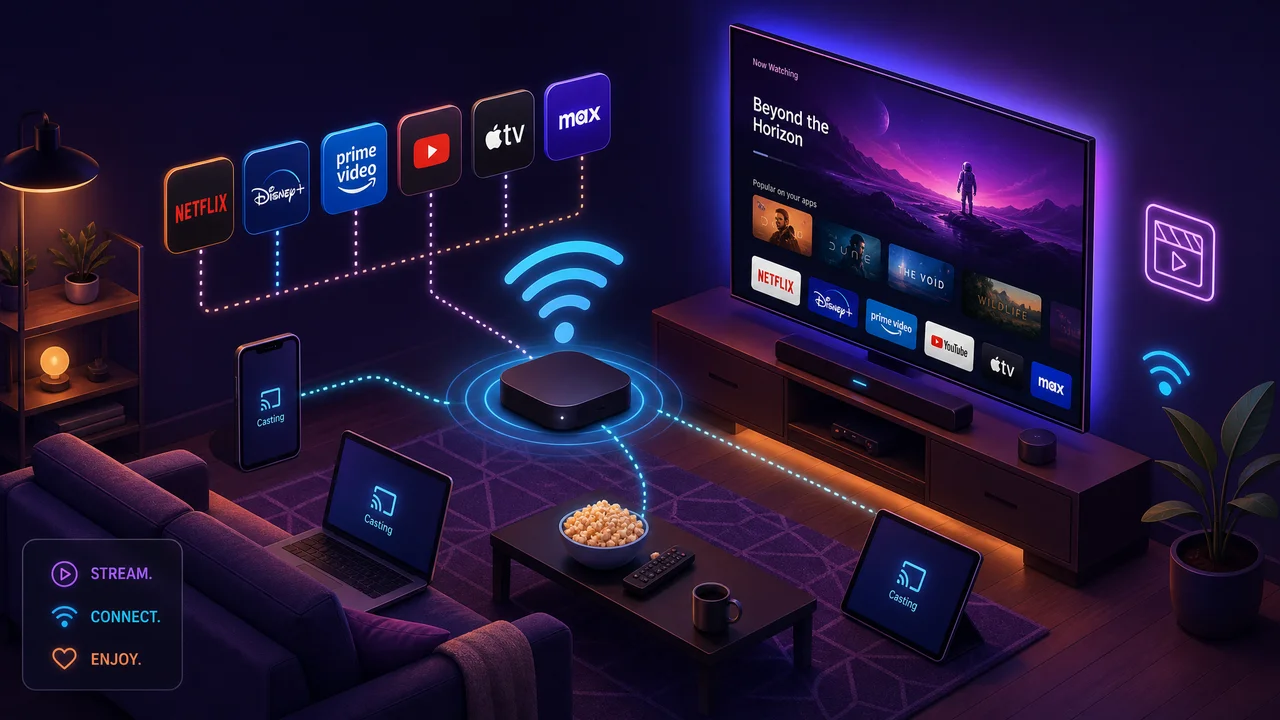
Building a complete live TV streaming setup at home replaces cable while often delivering a better experience. The right combination of hardware, internet speed, and streaming services creates a seamless viewing system that covers every channel and every room in your house.
What Internet Speed Do You Need for Live TV Streaming?
Anúncios
A single 1080p live TV stream uses approximately 5 to 8 Mbps. A household with three simultaneous streams plus other internet usage should target at least 50 Mbps. For 4K sports streaming, plan for 25 Mbps per stream.
Run a speed test at different times of day to confirm consistent performance. Evening hours when neighbors are also streaming can slow shared connections. If speeds drop below 25 Mbps during peak times, consider upgrading your plan.
Which Streaming Device Should You Buy?
Anúncios
Roku Streaming Stick 4K, Amazon Fire TV Stick 4K Max, and Apple TV 4K are the three most popular choices. Each runs every major live TV app and costs between $30 and $130 depending on the model and features.
Chromecast with Google TV offers another strong option that integrates with YouTube TV particularly well. Smart TV built-in apps work but dedicated streaming sticks typically perform faster and receive updates more frequently.
Should You Use Wi-Fi or Ethernet for Streaming?
Ethernet provides the most reliable connection for live sports with zero signal interference. If your TV is near your router, a simple ethernet cable eliminates buffering that Wi-Fi can occasionally cause during peak usage.
For rooms far from the router, a mesh Wi-Fi system maintains strong signal throughout the house. Products from brands like Eero, Google Nest, and TP-Link ensure every streaming device gets consistent bandwidth regardless of location.
How Do You Choose the Right Live TV Streaming Service?
List every channel you currently watch on cable. Use the channel lookup tools on YouTube TV, Hulu + Live TV, FuboTV, and Sling TV to see which service carries the most channels from your list at the best price.
Prioritize sports channel availability if you watch live games. Check regional sports network coverage for your local teams. This single factor often determines which service works best for your specific market.
Do You Need a Digital Antenna in Your Setup?
A digital antenna adds free over-the-air local channels as a backup and can fill gaps if your streaming service lacks certain affiliates. It also works during internet outages when all streaming goes down.
Indoor flat antennas mount on a wall or window and cost under $30. For the best reception, pair one with a network tuner like HDHomeRun that integrates antenna channels into your streaming device's interface.
What Accessories Improve the Streaming Experience?
- Soundbar — improves audio quality dramatically over built-in TV speakers for sports and movies
- Ethernet adapter — provides wired connection to streaming sticks that lack built-in ethernet ports
- Mesh Wi-Fi system — eliminates dead zones and ensures consistent speeds throughout the house
- Universal remote — controls TV, soundbar, and streaming device from a single remote
- HDMI switcher — connects multiple streaming devices to a TV with limited HDMI ports
- Digital antenna — free local channels as backup and for internet outage scenarios
How to Set Up Multi-Room Streaming
Place a streaming stick or device on every TV in your home. Most live TV services allow three or more simultaneous streams, so each room can watch different channels independently from a single subscription.
Ensure your Wi-Fi reaches every room with adequate speed. A mesh network with nodes in each area of the house prevents the buffering that can occur when streaming devices compete for bandwidth on a single router.
Can You Replicate a Cable DVR with Streaming?
Cloud DVR on YouTube TV and Hulu + Live TV is unlimited, surpassing the storage limits of most cable DVR boxes. Recordings save to the cloud and are accessible from any device logged into your account.
Set series recordings for shows and season recordings for sports teams. The DVR automatically captures every new episode or game without manual scheduling, replicating the convenience cable DVR users expect.
How to Manage Multiple Streaming Subscriptions
Use a spreadsheet or budgeting app to track all active subscriptions and their renewal dates. Rotate services based on seasons — add NFL Sunday Ticket during football season, drop it in spring, add MLB.TV for baseball.
Set calendar reminders before free trials expire to avoid unwanted charges. Most services make it easy to cancel and resubscribe later, so treat your streaming stack as a flexible lineup rather than permanent commitments.
What Does a Full Setup Cost Monthly?
A base setup with YouTube TV at $73 plus internet at $50 to $70 runs approximately $125 per month. Adding ESPN+ at $11 and Peacock at $8 brings the total to around $144, still below most cable bills.
One-time hardware costs include streaming devices at $30 to $50 each, an antenna at $25, and optional accessories. These upfront investments pay for themselves within the first few months of cable savings.
How Long Does It Take to Set Everything Up?
Most households can go from cable to streaming in a single afternoon. Plug in the streaming device, download the live TV app, sign up for a subscription, and start watching within minutes.
Setting up multi-room streaming with a mesh network takes slightly longer. Budget two to three hours to install mesh nodes, connect streaming devices in every room, and configure accounts across all screens.
Step-by-Step Setup Checklist
- Verify internet speed meets 50 Mbps minimum with a speed test
- Purchase streaming devices for each TV in the home
- Install a mesh Wi-Fi system if needed for full-house coverage
- Sign up for your chosen live TV streaming service
- Install and set up a digital antenna on the primary TV
- Configure cloud DVR with series recordings for favorite shows and teams
- Download additional apps like ESPN+, Peacock, or Paramount+
- Test streaming quality during a live event before canceling cable
- Cancel cable once satisfied with streaming performance
Troubleshooting Common Streaming Problems
Buffering usually indicates a bandwidth issue. Restart your router, check for firmware updates, and ensure no large downloads are running in the background during live viewing. Switching from Wi-Fi to ethernet often resolves persistent buffering.
If a specific channel looks poor while others work fine, the issue is likely on the broadcaster's end. Check social media or the streaming service's status page for known outages before troubleshooting your own equipment.