Smart TV Streaming Apps Pre-Installed vs Downloaded: Which Ones Actually Perform
Compare pre-installed and downloaded smart TV streaming apps to find which ones load faster, update reliably, and deliver the best picture quality on your television set.
Anúncios
What's the Difference Between Pre-Installed and Downloaded Streaming Apps?
Pre-installed streaming apps come loaded on your smart TV's operating system at the factory before it reaches the store shelf. Downloaded apps are added manually from the TV's app store after purchase. This distinction affects update frequency, performance optimization, and how long the app remains supported.
Anúncios
Manufacturers negotiate commercial deals to pre-install certain apps, which often receive special optimization for that specific TV model's hardware capabilities. Downloaded apps rely on the streaming service's general compatibility standards rather than receiving manufacturer-level integration and testing.
Understanding the difference helps you make better decisions about which apps to use on your television and when an external streaming device might deliver a superior experience compared to your TV's built-in software.
Do Pre-Installed Apps Load Faster Than Downloaded Ones?
Anúncios
Pre-installed apps typically launch one to three seconds faster because they're stored in the TV's system partition rather than user-accessible storage. This reserved storage space gives them priority access to memory allocation and processing resources during startup sequences.
Downloaded apps can match this startup speed on newer TVs equipped with sufficient RAM and fast internal storage. On budget models or older televisions with limited hardware resources, the performance difference becomes noticeably more pronounced as the system struggles to allocate resources to third-party applications.
Which Pre-Installed Apps Come Standard on Major TV Brands?
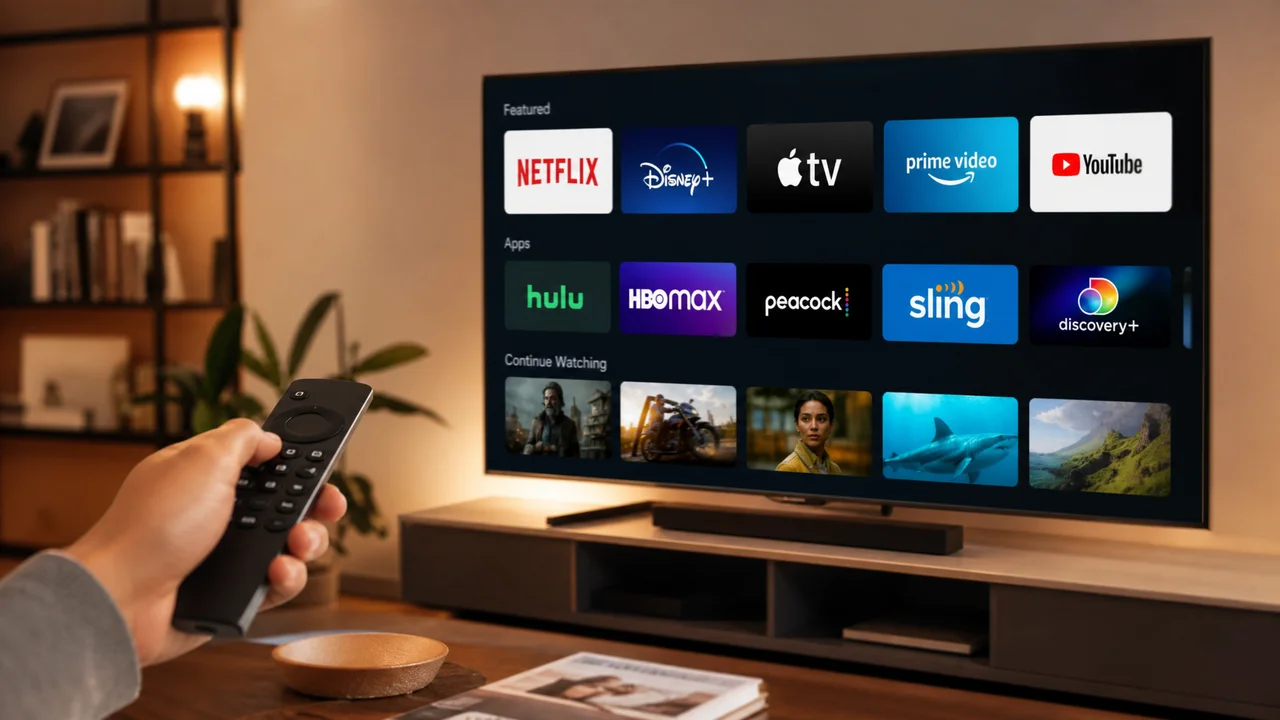
- Samsung (Tizen OS): Netflix, Disney+, Prime Video, Apple TV+, Paramount+, YouTube
- LG (webOS): Netflix, Disney+, Prime Video, Apple TV+, Peacock, YouTube
- Sony (Google TV): Netflix, YouTube, Disney+, Prime Video, Hulu, Peacock
- Vizio (SmartCast): Netflix, Disney+, Hulu, Peacock, Apple TV+, Paramount+
- TCL/Hisense (Roku or Google TV): Netflix, Hulu, Disney+, Prime Video, Apple TV+
The specific app lineup varies by model year, price tier, and region. Premium TV brands tend to launch with more pre-installed apps because their higher market position gives them stronger negotiating leverage with streaming companies during licensing discussions.
How Do Software Updates Work Differently for Each App Type?
Pre-installed apps update through firmware releases pushed by the TV manufacturer. These updates happen less frequently but undergo more rigorous testing for stability and hardware compatibility. You might wait weeks or months for a bug fix that the standalone downloaded version received immediately.
Downloaded apps update through the TV's app store, following the streaming service's own independent release schedule. This means faster access to new features and bug patches, but occasionally introduces compatibility issues that the manufacturer hasn't specifically tested for on your TV model.
Some TV operating systems handle this hybrid approach by eventually replacing pre-installed app versions with downloadable updates. After the initial factory version, subsequent updates may come through the app store regardless of how the app was originally installed.
Does Picture Quality Differ Between Pre-Installed and Downloaded Apps?
Pre-installed apps are more likely to support the TV's full HDR capabilities, including Dolby Vision, HDR10+, and manufacturer-specific picture enhancement technologies. These apps receive hardware-level color calibration testing that generic downloaded versions may not benefit from.
Downloaded apps usually match the same maximum resolution capabilities but sometimes fall short on advanced HDR format support. A downloaded Netflix app might stream content at 4K resolution but miss Dolby Vision rendering that the pre-installed version handles natively through deeper system integration.
The gap is narrowing as streaming services invest more in universal app development. Major platforms like Netflix and Disney+ now maintain dedicated engineering teams for each TV operating system, ensuring downloaded versions approach parity with pre-installed optimization.
Which Smart TV Operating System Runs Streaming Apps Best?
Google TV and Roku OS consistently deliver the smoothest streaming experiences across both pre-installed and downloaded apps. Their open ecosystems attract significant developer attention, resulting in well-optimized applications that receive frequent updates and broad feature support.
Samsung's Tizen and LG's webOS perform excellently for pre-installed flagship apps but maintain smaller third-party app stores with less variety. Niche or newer streaming services may not release dedicated apps for these proprietary platforms at all, forcing you toward external streaming devices.
Vizio's SmartCast system has improved significantly through recent updates but still lags behind competitors in overall app availability, interface responsiveness, and consistent performance. Budget TV operating systems from lesser-known manufacturers typically provide the weakest app experiences.
When Should You Use an External Streaming Device Instead?
Consider purchasing an external streaming device when your smart TV is more than three years old and apps have become noticeably sluggish during navigation and content playback. Roku Streaming Stick 4K, Amazon Fire TV Stick 4K, and Apple TV 4K all outperform aging built-in TV systems at modest cost.
External devices also solve the app availability problem entirely. If your Samsung TV doesn't carry a specific streaming service in its app store, plugging in a Roku or Fire Stick gives you access to virtually every streaming platform available regardless of your TV's proprietary operating system.
The investment typically ranges from $30 to $130 depending on whether you choose a basic stick or a premium box. Even at the high end, this costs less than replacing a functioning television solely because its smart features have degraded.
How Does Audio Performance Compare Across App Types?
Pre-installed apps hold a clear advantage for advanced audio format support. Dolby Atmos passthrough, eARC compatibility, and spatial audio features work most reliably through apps that the manufacturer has specifically tested against the TV's audio processing hardware and connected sound systems.
Downloaded apps sometimes default to basic stereo output even when surround sound hardware is properly connected. Troubleshooting audio format issues on downloaded apps often requires navigating manual configuration changes in both the streaming app settings and the TV's system audio preferences.
Do Smart TV Apps Track Your Viewing Data Differently?
Pre-installed apps may share viewing data with both the streaming service and the TV manufacturer through automatic content recognition (ACR) technology built into the television. This dual tracking generates more detailed behavioral profiles used for targeted advertising across multiple channels.
Downloaded apps typically report viewing data only to the streaming service itself. You can limit manufacturer-level tracking by disabling ACR and related analytics in your TV's privacy settings, though doing so may remove some personalized content recommendation features.
What Happens to Pre-Installed Apps When a TV Model Loses Support?
Manufacturers typically provide firmware updates and app maintenance for three to five years after a TV model launches. After official support ends, pre-installed apps stop receiving updates and may eventually cease to function entirely when the streaming service deprecates older API versions.
This planned obsolescence cycle is the strongest practical argument for owning an external streaming device. A $30 streaming stick extends your TV's useful streaming life by several additional years, keeping app performance current without requiring you to replace the entire television.
Can You Delete Pre-Installed Apps to Free Up System Resources?
Most smart TV platforms prevent full deletion of pre-installed apps from the system partition. Samsung and LG allow you to hide unwanted apps from the home screen interface, but the underlying system files remain on the TV's storage consuming resources in the background.
Downloaded apps can be fully uninstalled, freeing storage space and reducing background processes. If your TV runs slowly during navigation, removing unused downloaded apps often improves overall system responsiveness more effectively than hiding pre-installed ones you never use.
Which Streaming Apps Perform Best Regardless of Installation Method?
Netflix consistently delivers strong performance across every TV platform because it invests heavily in dedicated app development teams for each operating system. YouTube's app is similarly well-optimized, benefiting from Google's extensive engineering resources and cross-platform expertise.
Disney+ and Prime Video perform reliably on all major TV platforms with minimal variation. Smaller services like Paramount+, Peacock, and Max show more noticeable performance variation between their pre-installed and downloaded versions, particularly on budget television hardware with limited processing power.
How to Test and Optimize Streaming App Performance on Your TV
- Check your internet speed directly from the TV's built-in network diagnostics menu
- Clear the app cache through the TV's application manager or storage settings
- Ensure your TV firmware is updated to the latest available version from the manufacturer
- Restart the TV completely by unplugging it from power for 30 seconds
- Compare the same content on pre-installed versus downloaded app versions to identify quality differences
- Disable unused background apps and features that consume processing resources
Regular maintenance keeps both pre-installed and downloaded app types running smoothly over time. A monthly full restart combined with periodic cache clearing prevents the gradual performance degradation that affects smart TV systems as cached data accumulates.