Streaming App Features You Should Check Before Picking Your Next Subscription
Compare essential streaming app features like downloads, profiles, audio, and UI before subscribing. A practical guide to picking the right platform.
Anúncios
Most people pick a streaming service based on one show and ignore everything else. Understanding streaming app features before subscribing saves money and avoids frustrating surprises later.
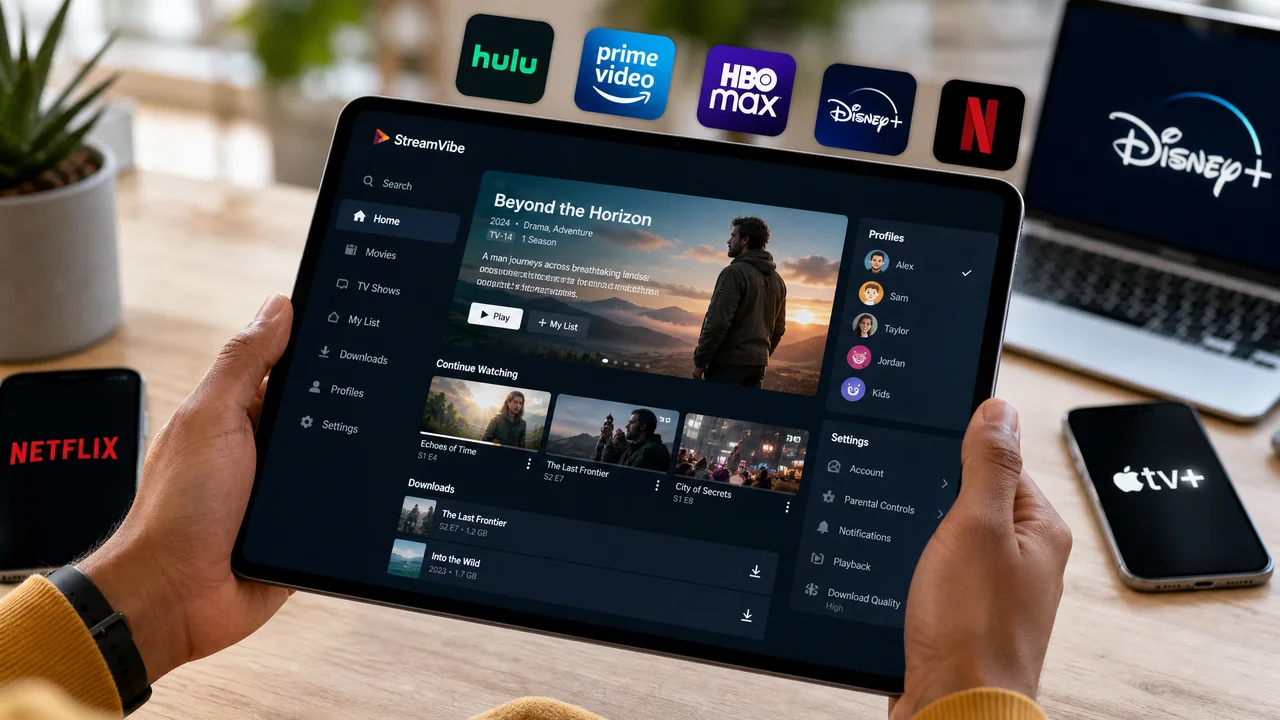
The difference between a good and bad streaming experience lives in the details: download limits, subtitle options, profile controls, and audio formats vary wildly across apps.
Anúncios
This guide walks through the features that affect daily use, with concrete comparisons you can check yourself before entering any credit card number.
Download and Offline Playback: The Feature That Saves Your Commute
Offline downloads turn dead zones into viewing windows. Checking download limits is one of the most overlooked streaming app features, especially for commuters and travelers.
Anúncios
Not every plan includes downloads. Netflix restricts them to ad-free tiers, while Disney+ allows downloads on every plan. That single difference changes value calculations entirely.
Storage Caps and Expiration Windows
Downloaded titles expire. Netflix gives 48 hours after you press play, while Amazon Prime Video allows up to 30 days untouched. Knowing the window prevents mid-flight disappointments.
Storage usage varies by quality setting. A one-hour episode at 1080p takes roughly 1.5 GB. Dropping to 720p cuts that nearly in half with barely noticeable visual loss on phone screens.
Before a trip, download three episodes at 720p instead of one at 4K. You get more variety using less storage, and phone displays cannot render the difference between 720p and 4K anyway.
Device Limits on Simultaneous Downloads
Some apps limit downloads to one or two devices at a time. If your household shares an account, this cap matters more than the total title count advertised.
Disney+ allows downloads on up to ten devices. Netflix caps it at one to six, depending on your tier. Check this number before committing, especially for family plans.
A practical test: try downloading a title on your phone and tablet simultaneously during a free trial. If it blocks the second device, that plan will frustrate a shared household.
| Platform | Download Limit | Expiration After Play | Max Devices |
|---|---|---|---|
| Netflix (Standard) | Varies by title | 48 hours | 2 devices |
| Disney+ | Unlimited (storage permitting) | 30 days (unplayed) | 10 devices |
| Amazon Prime Video | 15-25 titles | 48 hours | 2 devices |
| Apple TV+ | Unlimited | 48 hours | No hard cap |
| Max (formerly HBO) | 30 titles | 48 hours | 5 devices |
Profile Management and Parental Controls That Actually Work
Separate profiles keep recommendations accurate and prevent your true crime habit from polluting your kid's suggestions. Profile management is among the most practical streaming app features for households.
A single shared profile trains the algorithm on conflicting tastes. Within two weeks, the homepage becomes a random mishmash that serves nobody well.
PIN-Protected Profiles and Content Filters
Netflix and Disney+ let you set a four-digit PIN on individual profiles. This prevents kids from switching to an adult account when curiosity strikes at 9 PM.
Go to Account Settings, select the profile, and toggle "Profile Lock" or "Content Rating." Set the maturity filter to match each viewer's age. The entire process takes under two minutes.
- Create one profile per viewer. Even for two-person households, separate profiles prevent algorithm cross-contamination and keep the homepage relevant to each person's actual taste.
- Set maturity ratings on kids' profiles immediately. Default settings vary by platform; some allow TV-14 content on children's profiles unless you manually restrict it during setup.
- Use the PIN feature on the primary profile. A four-digit lock prevents accidental switches and protects your watchlist from being altered by other household members.
- Delete unused profiles quarterly. Old profiles from former roommates or guests skew account-level recommendations and waste one of your limited profile slots.
- Check "Who's Watching" logs monthly. Netflix shows recent activity per profile under Account. Spot unauthorized access before it messes with your algorithm or triggers password-sharing flags.
Good profile hygiene takes five minutes per month and keeps the app useful instead of cluttered. Small maintenance prevents big frustrations down the road.
Language and Subtitle Customization Across Platforms
Subtitle styling matters more than people admit. Yellow text on a bright scene is unreadable. Checking subtitle streaming app features avoids squinting through entire films.
Apple TV+ and Netflix allow font size, color, and background adjustments. Amazon Prime Video offers fewer options. If subtitles are essential, test customization during a free trial.
- Test subtitle timing on action scenes. Some apps lag subtitles by half a second during fast edits. Play a chase scene during your trial to catch sync issues before committing.
- Switch subtitle language mid-episode to verify availability. Not every show offers the same language set. Foreign-language titles sometimes lack English subs on smaller platforms.
- Enable closed captions, not just subtitles. CC includes sound descriptions like [door slams] that add context, especially useful when watching at low volume late at night.
- Check audio description tracks for accessibility. Netflix and Apple TV+ lead here with narrated descriptions of visual action, a critical feature for visually impaired household members.
- Save subtitle preferences at the profile level. Disney+ and Netflix remember your subtitle settings per profile. Set it once instead of toggling every time you start a new title.
Subtitle and language options rarely appear in marketing materials. Testing these streaming app features during a trial reveals whether daily viewing will feel smooth or frustrating.
Audio Quality and Device Compatibility: The Silent Dealbreakers
A gorgeous 4K picture paired with compressed stereo audio feels incomplete. Audio quality is one of the streaming app features that separates a cinematic experience from a flat one.
Dolby Atmos, spatial audio, and high-bitrate stereo require both app support and device compatibility. Mismatched hardware means you pay for features you never actually hear.
Matching Audio Formats to Your Setup
If you use a soundbar, check whether it decodes Dolby Digital Plus or only basic stereo. A soundbar that lacks DD+ will downmix Atmos tracks to flat two-channel output.
Apple TV+ and Netflix deliver Atmos on Apple TV 4K and select smart TVs. Amazon requires a Fire TV Stick 4K or an eARC-connected receiver. Run a test title to confirm.
Play the opening scene of a known Atmos title and listen for overhead effects. If dialogue sounds centered but ambient sounds stay flat, your device is not passing Atmos through correctly.
Bandwidth Requirements Nobody Warns You About
4K streaming with Atmos audio uses 15 to 25 Mbps. A household with two simultaneous streaming app features sessions at 4K needs at least 50 Mbps dedicated to streaming alone.
Run a speed test at your usual viewing time, not midday when the network is quiet. Evening congestion can cut available bandwidth by 30 to 40 percent in shared buildings.
If your connection hovers near 25 Mbps, drop resolution to 1080p. The visual difference on screens under 55 inches is minimal, and you eliminate buffering interruptions entirely.
Pick the Right App by Testing What You Actually Use
Comparing streaming app features on paper only gets you halfway. The real test happens during a free trial, using the app the way you would every evening.
Download a title, switch profiles, toggle subtitles, and play an Atmos scene. Those four actions in ten minutes reveal more than any review article can describe in a thousand words.
Your ideal platform depends on your hardware, household, and habits. Match streaming app features to your actual setup, and the subscription you choose will feel worth every dollar.