Streaming Quality Settings That Save Bandwidth Without Ruining Your Picture
Learn which streaming quality settings to adjust on Netflix, YouTube, and other apps to cut data usage in half while keeping a sharp, enjoyable picture on every screen.
Anúncios
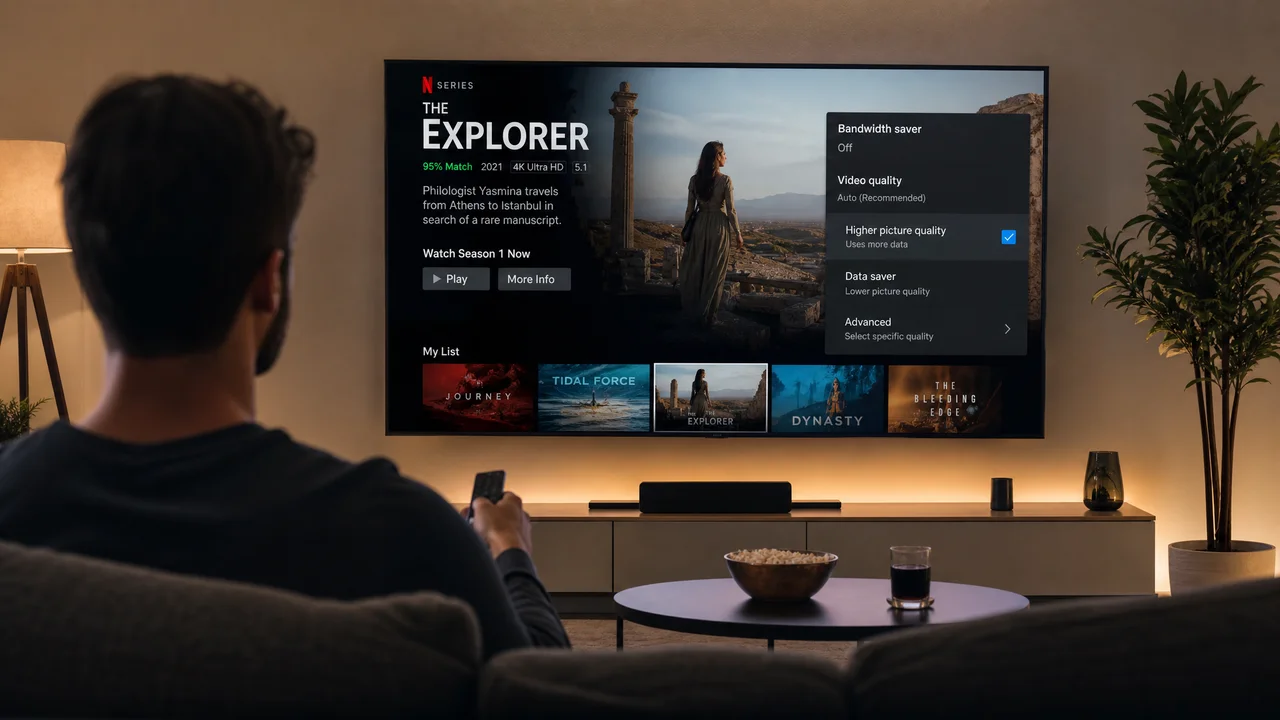
Streaming in 4K Ultra HD looks stunning, but it burns through roughly 7 GB per hour on Netflix alone. Most households do not need that level of detail on every screen at every moment. Adjusting quality settings per device and per app can slash monthly data consumption by half while keeping the picture perfectly watchable.
This guide explains the relationship between resolution, bitrate, and bandwidth across every major streaming platform. You will learn which settings to change, where to find them, and how to pick the right quality for each screen size in your home.
Anúncios
How Much Bandwidth Does Each Streaming Resolution Actually Use?
| Resolution | Approx. Bitrate | Data per Hour | Best For |
|---|---|---|---|
| 480p (SD) | 1.5 Mbps | 0.7 GB | Phones, background viewing |
| 720p (HD) | 3 Mbps | 1.5 GB | Tablets, small laptops |
| 1080p (Full HD) | 5 Mbps | 3 GB | Laptops, monitors, smaller TVs |
| 4K UHD | 15-25 Mbps | 7 GB | Large TVs, home theater |
| 4K HDR/DV | 20-25 Mbps | 10 GB | Premium home theater setups |
The jump from 1080p to 4K doubles or triples data usage while the visual improvement shrinks as screen size decreases. On a phone or tablet, 720p and 1080p look nearly identical. Save 4K for the living room TV where the extra pixels actually register.
Anúncios
Where to Find Quality Settings on Netflix
Netflix offers per-profile data usage controls. Log in to the web interface, open Account, select a profile, and click Playback Settings. Choose from Auto, Low, Medium, or High. The Auto setting adapts to your internet speed in real time, which works well on stable connections but can spike data use on fast networks.
On mobile devices, open the Netflix app, go to App Settings, then select Cellular Data Usage. Options include Automatic, Wi-Fi Only, Save Data, and Maximum Data. Setting phones to Save Data caps streams at 480p over cellular, which is barely noticeable on a six-inch screen and preserves your monthly data cap.
How to Reduce YouTube Data Usage Without Dropping Quality
YouTube defaults to Auto quality, which often pushes 1080p or higher on fast connections. Tap the gear icon during playback, select Quality, and choose Advanced. Pick 720p for general viewing or 480p for music and podcasts where visuals matter less. YouTube remembers your last manual choice per session but resets on app restart.
YouTube Premium subscribers can download videos over Wi-Fi and watch offline later. This sidesteps bandwidth entirely for commutes or travel. Set download quality to 720p in the app settings to balance file size against visual clarity on mobile screens.
What Quality Settings Does Disney+ Support?
Disney+ provides a global data-saver toggle under App Settings. Enabling it reduces streaming quality across all content, typically capping at 720p. The setting applies per device, so you can leave it off on the living room TV while enabling it on a child's tablet that connects over cellular data.
Downloads on Disney+ offer three quality levels: Standard, Medium, and High. Standard uses the least storage and downloads fastest, making it ideal for loading a few episodes onto a tablet before a road trip. The visual difference between Medium and High is marginal on screens under ten inches.
Does Lowering Resolution Actually Look Bad on a Big TV?
On a 55-inch TV viewed from eight feet away, the difference between 1080p and 4K is subtle for most content. Fast-paced action scenes and nature documentaries benefit from higher resolution, but dialogue-driven shows and comedies look fine at 1080p. Your eyes adapt within minutes.
Dropping below 1080p on a large screen does become noticeable. Text appears fuzzy, edges lose sharpness, and dark scenes show more compression artifacts. Keep big TVs at 1080p minimum and save the bandwidth cuts for smaller screens throughout the house.
How to Optimize Amazon Prime Video Streaming Quality
Amazon Prime Video lets you set streaming quality separately for Wi-Fi and cellular connections. Open Settings, select Stream & Download, and pick from Best, Better, Good, or Data Saver. The Good setting targets 480p, which cuts data use by roughly 75 percent compared to Best on a 4K-capable device.
For Fire TV Stick users, navigate to Settings, Preferences, then Data Monitoring. Enable data monitoring and set a monthly cap. The device throttles streaming quality automatically as you approach the limit, preventing surprise overages on metered connections.
Which Settings Matter Most for Mobile Streaming?
- Cap cellular streaming at 480p or 720p across all apps to protect data limits
- Enable Wi-Fi Only mode for downloads so large files never hit your cellular plan
- Turn off autoplay next episode on mobile to prevent accidental data-heavy binges
- Use download features for commutes and flights instead of streaming live
- Disable background app refresh for streaming apps that pre-buffer content silently
- Check per-app data usage monthly in your phone settings to catch hidden drains
Mobile screens rarely benefit from anything above 720p. The pixel density on modern phones is high enough that 720p content looks crisp at normal viewing distance. Reserve higher quality settings for when you connect to Wi-Fi and cast to a larger display.
How Do Adaptive Bitrate Streams Work Behind the Scenes?
Every major streaming platform uses adaptive bitrate streaming (ABR). The player constantly measures your connection speed and switches between quality levels in real time. When bandwidth drops, the stream shifts to a lower resolution to avoid buffering. When bandwidth recovers, quality ramps back up within seconds.
Manual quality settings override the upper limit of ABR but not the lower limit. Setting Netflix to Medium tells the player to never exceed 720p but still allows it to drop lower if the connection struggles. This is why a manual cap saves data without introducing buffering — the player adapts downward freely.
Can a Better Router Improve Streaming Quality at Lower Bandwidth?
A router upgrade does not increase your internet speed, but it can reduce latency and packet loss that trigger ABR downgrades. Wi-Fi 6 and Wi-Fi 6E routers handle multiple simultaneous streams more efficiently, preventing one device from hogging bandwidth while another buffers.
Quality of Service (QoS) settings on modern routers let you prioritize streaming traffic over file downloads and software updates. Enabling QoS ensures that a background Windows update does not steal bandwidth from the 4K movie playing in the living room. Most routers offer a simple toggle or drag-and-drop priority list.
Downloading vs Streaming: Which Uses Less Data Overall?
Downloading and streaming the same title at the same quality use roughly the same amount of data. The difference is when that data transfers. Downloading over Wi-Fi at home and watching offline later uses zero cellular data, making it the best strategy for anyone with a limited mobile plan.
Downloads also eliminate re-streaming waste. If you rewatch a favorite episode three times, streaming uses triple the data while a download uses it once. For content your household replays regularly — kids' shows especially — downloading pays dividends quickly.
Setting Up a Household Bandwidth Budget
ISPs with data caps typically allow 1 TB to 1.2 TB per month. A family streaming 1080p content for four hours daily across two screens uses roughly 720 GB monthly. Add gaming, video calls, and general browsing, and you approach the cap without ever touching 4K. Knowing your baseline consumption prevents surprise overage fees.
Log into your ISP account and check the data usage dashboard. Most providers show daily and monthly totals. Compare your actual usage against your plan's cap, and adjust streaming quality settings if you consistently land above 80 percent of the limit by the third week of the billing cycle.
Frequently Asked Questions About Streaming Quality and Bandwidth
Will lowering streaming quality cause buffering?
Does streaming at 720p instead of 4K save a meaningful amount of data?
Can I set different quality levels for different profiles on the same account?
Does using an Ethernet cable instead of Wi-Fi improve streaming quality?
How do I know if my internet plan is fast enough for 4K streaming?
Finding the Right Balance for Every Screen in Your Home
The goal is not to stream at the lowest possible quality everywhere. It is to match resolution to screen size and viewing context. Keep 4K enabled on the main TV, drop to 1080p on secondary screens, and set mobile devices to 720p or lower on cellular. This tiered approach preserves the viewing experience where it matters and saves bandwidth everywhere else.
Revisit your settings whenever you add a new device, change internet plans, or notice your ISP data meter climbing faster than expected. A five-minute audit of quality settings across all apps and devices can prevent overage charges and buffering issues for months to come.