How to Connect Multiple Streaming Devices to One TV
Connect multiple streaming devices to one TV. HDMI switches, port management, and setup tips for households with Roku, Fire Stick, and other devices.
Anúncios
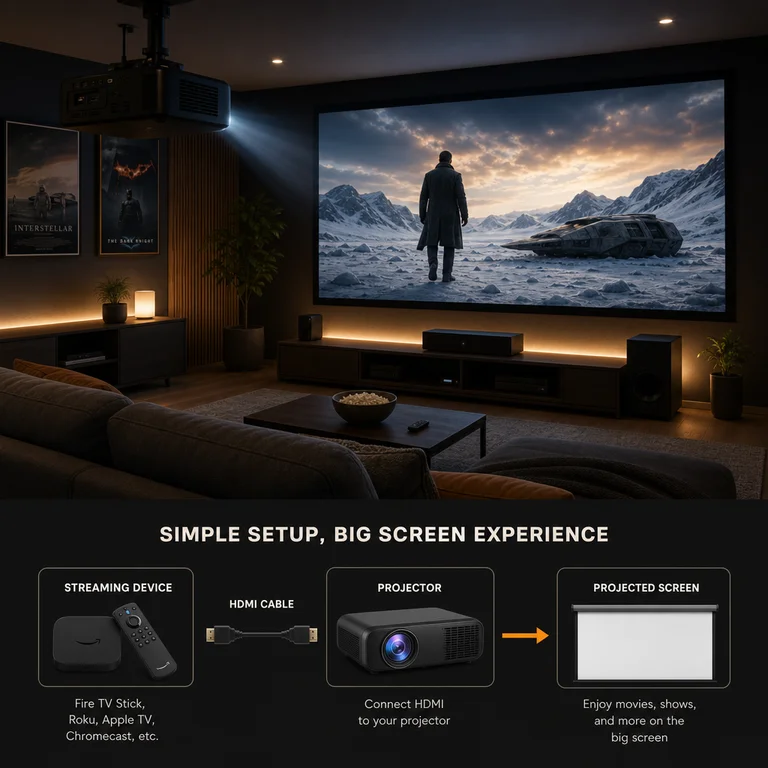
Many households accumulate multiple streaming devices over time. A Roku from two years ago, a Fire Stick gifted last holiday, a Chromecast that came with a phone promotion. Connecting them all to one TV requires a bit of planning but no technical expertise.
Why Would You Need Multiple Streaming Devices?
Anúncios
Different family members often prefer different platforms. One person loves Roku's simplicity while another relies on Alexa through the Fire Stick. Kids might use a Chromecast for casting from tablets. Each device serves a specific user's habits and preferences.
Some devices excel in areas where others fall short. A Roku handles free ad-supported channels better, while an Apple TV delivers superior AirPlay mirroring. Keeping multiple devices gives you the best features from each platform without compromise.
How Many HDMI Ports Does a Typical TV Have?
Anúncios
Most modern TVs include three to four HDMI ports. Budget models sometimes offer only two. After connecting a soundbar to the ARC port, you might have two or three remaining ports for streaming devices, gaming consoles, and Blu-ray players.
Check the back and side panels of your TV for all available ports. Side-mounted ports are easier to access for devices you plug and unplug frequently. Rear ports work better for permanent connections that stay in place.
What Is an HDMI Switch and How Does It Work?
An HDMI switch connects multiple devices to a single HDMI port on your TV. A 3-to-1 switch, for example, accepts three HDMI inputs and outputs through one cable to the TV. Switches cost $15 to $40 depending on features and resolution support.
Automatic switches detect which device powers on and route that signal to the TV. Manual switches require pressing a button or using a remote to select the active device. Automatic switching provides the most seamless experience for daily use.
Does an HDMI Switch Reduce Picture Quality?
Quality HDMI switches pass signals without degradation. Look for switches rated for 4K at 60Hz with HDR support and HDCP 2.2 compliance. Budget switches that only support 1080p will bottleneck 4K streaming devices and limit your picture quality.
Avoid switches with built-in signal processing or upscaling features. Passthrough switches that simply route the digital signal unchanged deliver the cleanest results. The streaming device and TV handle all the processing — the switch just directs traffic.
Can You Use All Streaming Devices Simultaneously?
Only one device can display on the TV at a time. However, all connected devices remain powered and ready to switch. Moving between devices takes a few seconds whether you switch inputs on the TV remote or press a button on an HDMI switch.
- Only one HDMI source displays at a time per TV
- Devices stay powered even when not selected
- CEC can auto-switch when a device powers on
- Picture-in-picture requires TV-level support, not streaming device features
- Each device maintains its own network connection independently
How Do You Manage Multiple Remotes?
Multiple streaming devices mean multiple remotes cluttering the coffee table. A universal remote like the SofaBaton or Logitech Harmony consolidates control. Alternatively, use each streaming platform's phone app as a virtual remote to reduce physical remotes.
Label each remote with a small sticker identifying its device. This simple step prevents the frustrating guessing game of which remote controls which device, especially for other household members unfamiliar with the setup.
Does HDMI-CEC Help With Multiple Devices?
CEC allows devices to communicate through HDMI connections. When you power on a streaming device, CEC can automatically switch the TV to the correct input and even turn the TV on. This eliminates manual input switching for the most common scenarios.
CEC with multiple devices sometimes causes conflicts. Two devices may fight for control, switching inputs unexpectedly. If CEC creates problems, disable it on devices you use less frequently and keep it active only on your primary streaming device.
What About Power Management for Multiple Devices?
Streaming devices draw power continuously even in standby mode. Multiple devices increase standby power consumption slightly. A smart power strip that cuts power to unused devices saves a few dollars annually and reduces unnecessary energy waste.
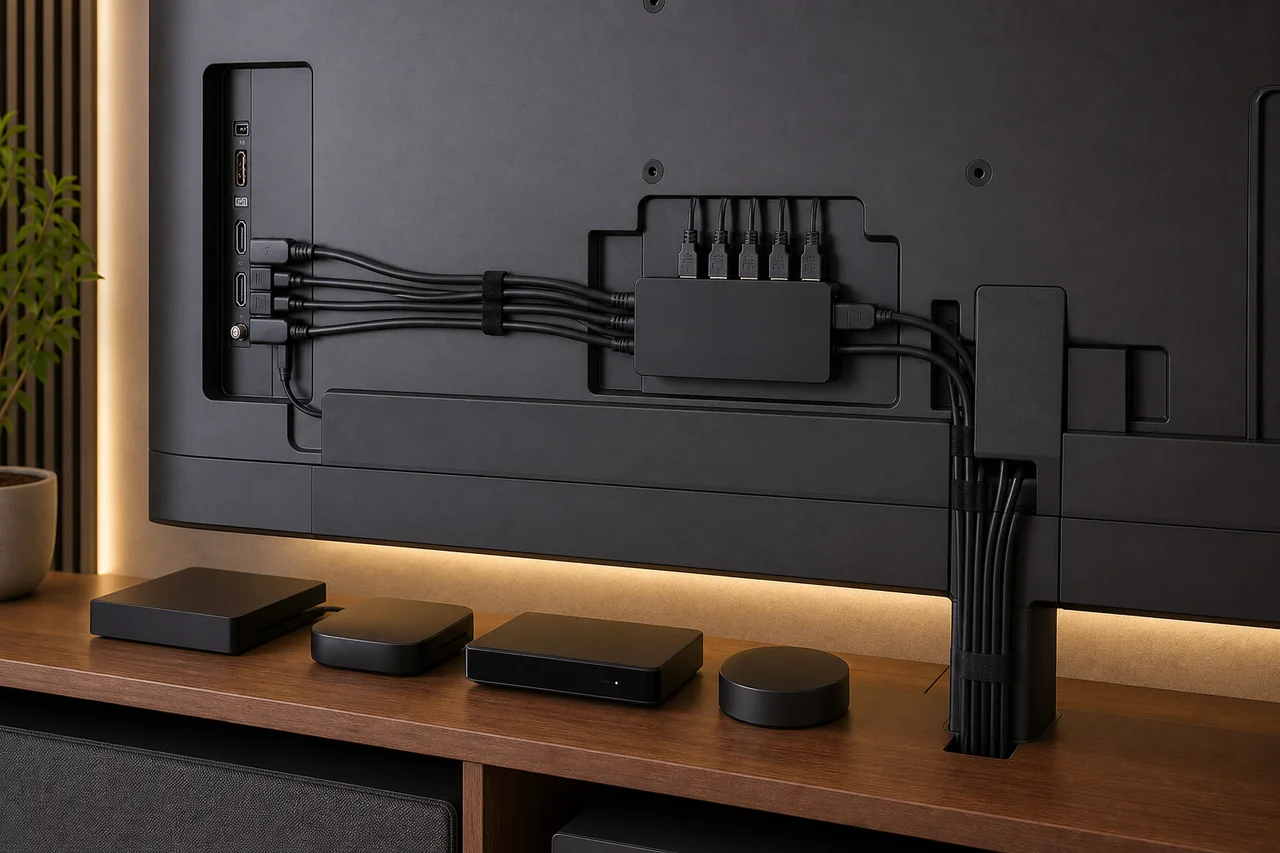
Most streaming sticks draw power from USB ports or small adapters. Grouping power cables with a cable management box keeps the area behind your TV tidy. Velcro cable ties bundle individual cables without creating a permanent tangle.
Can Multiple Devices Share One Wi-Fi Network?
All streaming devices connect to your Wi-Fi network independently. Multiple devices sharing the network do not compete for bandwidth unless they stream simultaneously. Only the active device consumes significant bandwidth while others idle quietly.
Assign static IP addresses to streaming devices through your router settings to prevent occasional connection drops during DHCP lease renewals. This minor network configuration ensures each device maintains a stable connection without interference from address changes.
Should You Consolidate to One Device Instead?
Consolidating to a single streaming device simplifies everything: one remote, one interface, one set of accounts. If no family member strongly prefers a specific platform, choosing the best overall device and committing to it reduces complexity without sacrificing functionality.
Keep a second device as a backup or for a specific use case. The primary device handles daily streaming while the secondary serves niche needs like casting, gaming, or accessing a platform-exclusive app unavailable on the main device.
How to Organize Your Multi-Device Setup
Mount streaming sticks directly to HDMI ports using their built-in connectors or extender cables. Place streaming boxes on the shelf behind the TV. Route cables cleanly with ties and channels. A tidy setup makes troubleshooting easier and looks far better.