How to Connect a Streaming Device to a Projector Setup
Learn how to connect Roku, Fire Stick, Chromecast, or Apple TV to a projector for the ultimate streaming experience at home.
Anúncios
Projectors have become surprisingly affordable, and pairing one with a streaming device creates a cinema-sized experience without the cinema-sized price tag. A basic 1080p projector plus a streaming stick costs less than most large-screen TVs.
Which Streaming Devices Work Best With Projectors?
Anúncios
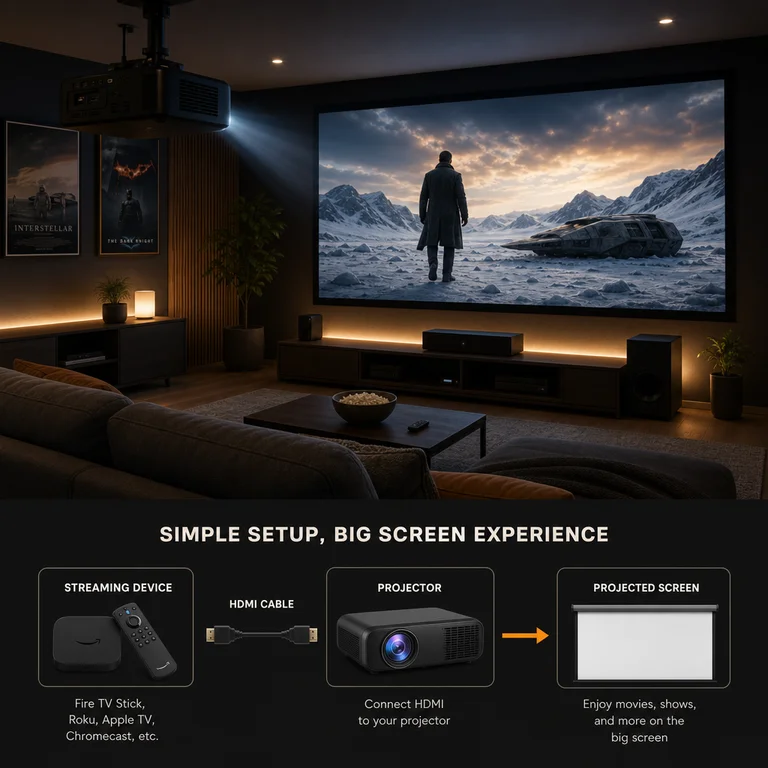
Fire TV Stick 4K Max, Roku Streaming Stick 4K, and Apple TV 4K all connect seamlessly to projectors via HDMI. Compact stick-form devices work better than box-style units because they plug directly into the projector without extra cable runs.
Chromecast with Google TV is another excellent choice due to its small size and wireless casting capability. You can beam content from your phone to the projector without any physical remote, which simplifies control when the projector is ceiling-mounted.
HDMI Connection Basics for Projector Streaming
Anúncios
Most projectors include at least one HDMI input port. Plug your streaming stick directly into this port, connect the USB power cable to the projector USB port or a wall adapter, and power on both devices. The projector should detect the streaming device automatically.
If your projector has HDMI ARC, use that port for the streaming device. ARC passes audio back to a connected soundbar or receiver, eliminating the need for separate audio cables and keeping your setup clean and simple.
How Do You Handle Audio With a Projector Setup?
Built-in projector speakers are notoriously weak. Pairing a Bluetooth speaker or soundbar dramatically improves the experience. Most streaming devices support Bluetooth audio output, letting you connect wireless speakers without running cables across the room.
For dedicated home theater setups, an HDMI audio extractor splits video to the projector and audio to a separate receiver. This approach delivers surround sound quality while keeping video resolution at maximum quality on the big screen.
Best Budget Projectors for Streaming Content
- XGIMI Halo+ — portable 1080p with built-in Harman Kardon speakers, great for outdoor use
- BenQ TH585P — dedicated 1080p home projector with low input lag and bright output
- Anker Nebula Capsule 3 — ultra-portable with Android TV built in, no streaming stick needed
- Epson Home Cinema 880 — reliable 1080p with 3,300 lumens for rooms that are hard to darken
- ViewSonic PX701-4K — true 4K resolution at a mid-range price for serious home theaters
Can You Use a Streaming Device With a Portable Projector?
Absolutely. Portable projectors with HDMI input accept any streaming stick. Power the stick from a portable battery bank if the projector USB port does not supply enough juice. This creates a truly mobile movie setup for camping, backyard screenings, and travel.
Some portable projectors like the Nebula Capsule series have Android TV built in, eliminating the need for a separate streaming device entirely. However, dedicated streaming sticks generally offer smoother app performance and faster updates.
Wi-Fi Considerations for Projector Streaming
Projectors are often placed far from the router, which can cause buffering on streaming devices. A Wi-Fi 6 mesh system solves this by extending strong coverage to wherever the projector sits. Alternatively, a powerline Ethernet adapter delivers wired speeds through existing electrical wiring.
Test your connection speed at the projector location before hosting a movie night. Streaming 4K content requires at least 25 Mbps of sustained bandwidth, and anything below 15 Mbps will struggle with even 1080p streams during peak hours.
Screen Options That Pair Well With Streaming Projectors
A dedicated projector screen delivers sharper images than projecting onto a wall. Retractable screens start around $50 and mount to the wall or ceiling with basic hardware. Motorized screens cost more but add convenience for permanent installations.
For outdoor use, inflatable screens create an instant backyard theater. Pair one with a portable projector and a Bluetooth speaker for a summer movie night setup that takes less than 10 minutes to assemble from start to first frame.
Troubleshooting Common Projector Streaming Problems
Black screen with audio usually means an HDCP handshake failure. Unplug and replug the HDMI cable, then restart the streaming device. If the problem persists, check that your projector firmware supports HDCP 2.2 for 4K content.
Input lag during streaming is rarely noticeable for movies but matters for gaming. Enable game mode on the projector settings if available, which reduces processing delay by disabling image enhancement features you do not need while streaming.
Setting Up an Outdoor Streaming Projector Station
Run an extension cord rated for outdoor use to power the projector and streaming device. Position the setup so the screen faces away from streetlights or neighbor windows. Wait until at least 30 minutes after sunset for the best image visibility.
Use a phone hotspot as backup internet if your home Wi-Fi does not reach the backyard. Most streaming devices connect to mobile hotspots without issues, though data usage for a two-hour film runs between 3 and 7 GB depending on resolution settings.