How to Fix Common Streaming Device Problems Fast
Fix common streaming device problems quickly. Troubleshooting guide for buffering, no signal, audio sync, Wi-Fi issues, and remote pairing on any device.
Anúncios
Streaming devices work flawlessly most of the time, which makes problems feel extra frustrating when they appear. The good news: most issues follow predictable patterns with simple fixes. This guide covers every common problem and its fastest solution.
Why Is My Streaming Device Buffering Constantly?
Anúncios
Buffering happens when your internet cannot deliver data fast enough for smooth playback. Check your Wi-Fi signal strength in the device's network settings. Move the router closer to the TV or switch from the 2.4GHz band to 5GHz for a faster, more stable connection.
Reduce network congestion by pausing downloads on other devices. Lowering the streaming quality from 4K to 1080p in app settings cuts bandwidth requirements in half. If buffering persists, restart your router and streaming device by unplugging both for thirty seconds.
What Causes a Black Screen With No Signal?
Anúncios
A black screen typically means the TV is not receiving a signal from the streaming device. Verify you selected the correct HDMI input on your TV. Check that the streaming device has power — the LED indicator should glow or flash during normal operation.
Try a different HDMI port on the TV. If the device works on another port, the original port may be damaged. Swap the HDMI cable if using a box-style device with a separate cable. Faulty cables cause more black screen issues than faulty streaming devices.
How Do You Fix Audio Out of Sync With Video?
Audio sync issues usually stem from audio processing delays in soundbars or AV receivers. Check your soundbar's audio delay or lip sync settings and adjust until dialogue matches mouth movements. Most soundbars offer this adjustment in their settings menu.
Switching the streaming device's audio output from surround sound to stereo sometimes resolves sync problems caused by format conversion. If the issue only affects one app, clear that app's cache or reinstall it to reset its audio pipeline.
Why Does My Streaming Device Keep Restarting?
Random restarts typically indicate insufficient power supply. Streaming sticks powered by the TV's USB port may not receive adequate wattage. Switch to the wall adapter included in the box. A dedicated power source provides the consistent current the device requires.
Overheating also causes unexpected restarts. Streaming sticks tucked behind TVs without airflow run hotter than intended. Use the included HDMI extender cable to position the device away from the TV's heat, allowing better air circulation around the device.
What If the Remote Stops Working?
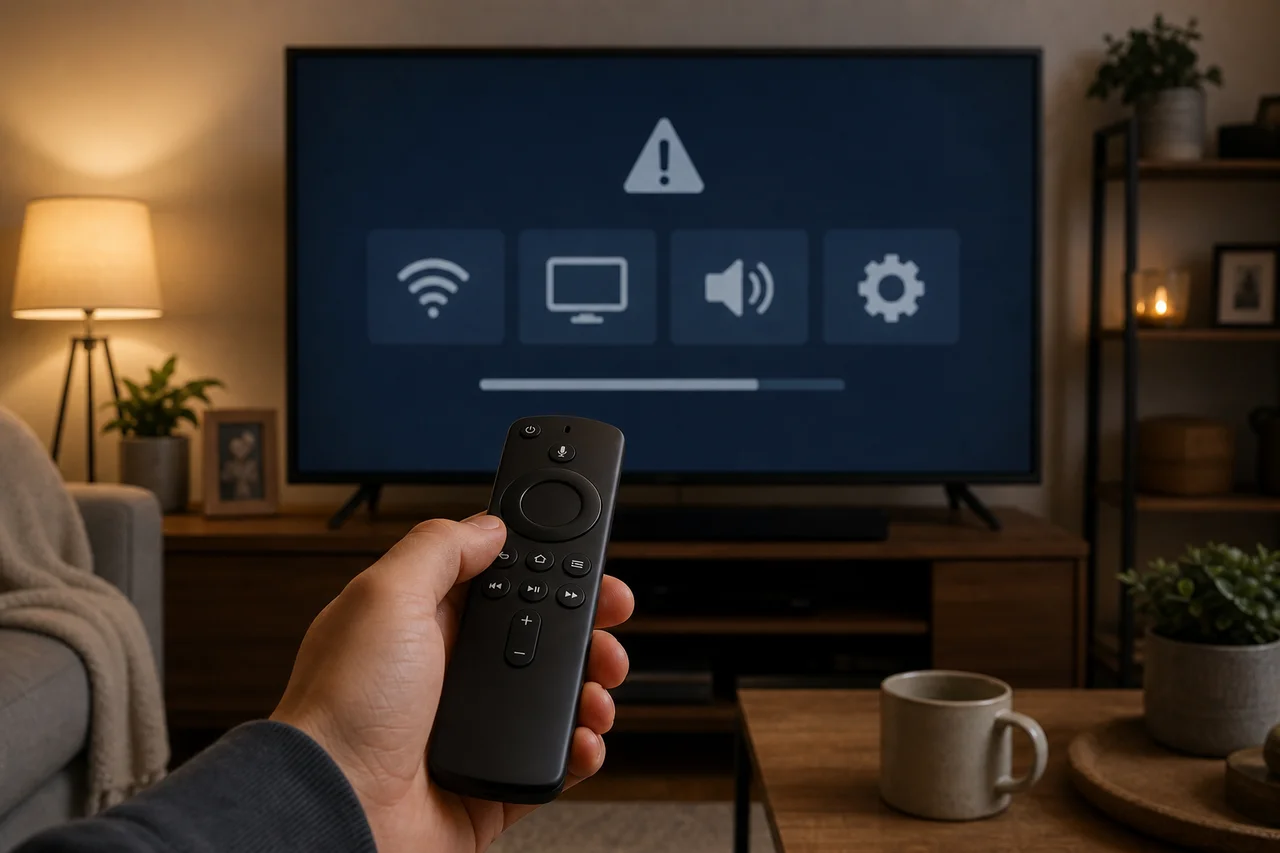
Replace the batteries first — this solves remote issues more often than any other fix. If new batteries do not help, re-pair the remote by holding the pairing button for ten seconds while the device is powered on and within three feet of the remote.
- Replace remote batteries with fresh ones
- Hold the pairing button for 10 seconds to re-pair
- Remove obstructions between the remote and device
- Download the companion phone app as a temporary remote
- Factory reset the remote if pairing repeatedly fails
Every major streaming platform offers a companion phone app that functions as a replacement remote. Download the Roku app, Fire TV app, Google Home app, or Apple TV Remote from your phone's app store as an immediate backup while troubleshooting the physical remote.
How Do You Fix Wi-Fi Connection Drops?
Intermittent Wi-Fi drops suggest signal interference or router instability. Move the streaming device away from other electronics. Check if your router's firmware needs updating. Restart the router to clear its connection table and re-establish fresh connections.
Assign a static IP address to your streaming device through the router settings. Dynamic IP changes during DHCP lease renewal can momentarily drop connections. A static assignment eliminates this source of brief disconnections during streaming sessions.
Why Are Apps Crashing or Freezing?
App crashes result from outdated software, insufficient storage, or corrupted cache data. Update the app and the device's operating system to the latest versions. Clear the problematic app's cache through the device's application settings menu.
Low storage space causes app instability. Delete unused apps to free storage. Streaming devices with 8 GB of internal storage fill up quickly when multiple large apps are installed. Keeping five to eight essential apps prevents storage-related performance issues.
What Causes Purple or Green Screen Artifacts?
Color artifacts like purple or green tinting indicate HDMI handshake failures or incompatible display settings. Change the streaming device's video output from automatic to a specific resolution like 1080p at 60Hz. If the picture normalizes, gradually increase settings until finding the highest stable configuration.
HDR-related conflicts between the device and TV cause similar issues. Disable HDR in the streaming device settings to test. If the artifacts disappear, your HDMI cable may not support HDR bandwidth. Replace it with a certified Premium High Speed HDMI cable.
How Do You Perform a Factory Reset?
Factory reset erases all data and returns the device to its original state. Navigate to Settings, System, then Advanced System Settings or Factory Reset. Confirm the reset and wait for the device to restart. You will need to set up the device from scratch afterward.
If the device is unresponsive and you cannot reach settings, most streaming devices have a physical reset button. Press and hold this small recessed button with a paperclip for fifteen seconds. The device restarts and begins the setup process fresh.
Why Does My Device Run Slowly Over Time?
Streaming devices slow down as apps consume more resources with updates. Cache files accumulate, storage fills up, and background processes multiply. Regular maintenance — clearing caches, removing unused apps, and restarting the device weekly — maintains performance.
After three to four years, hardware limitations become unavoidable. App developers optimize for newer processors, and older devices struggle to keep pace. Replacing an aging streaming device with a current model restores the snappy performance you remember from day one.
Can Overheating Damage a Streaming Device?
Sustained overheating degrades internal components over time and causes thermal throttling that slows performance. Ensure adequate ventilation around the device. Avoid stacking devices on top of each other or enclosing them in tight spaces without airflow.
Streaming sticks generate more heat than boxes due to their compact size. The HDMI extender cable creates separation from the TV's warm backside. Position sticks where air circulates freely rather than trapping them directly against the TV panel.
Quick Troubleshooting Reference
When anything goes wrong, start with the universal fix: unplug the device for thirty seconds and plug it back in. This simple restart resolves the majority of streaming device problems without any technical knowledge. Escalate to specific fixes only if the restart fails.