HDMI Tips Every Streaming Device Owner Should Know
Essential HDMI tips for streaming devices. Learn about HDMI versions, ARC vs eARC, cable types, port selection, and fixing common connection problems.
Anúncios
HDMI connections seem straightforward until something goes wrong. The cable, port version, and settings behind that simple-looking plug determine whether your streaming device delivers its full picture and audio quality or falls short of its potential.
What HDMI Version Does Your TV Support?
Anúncios
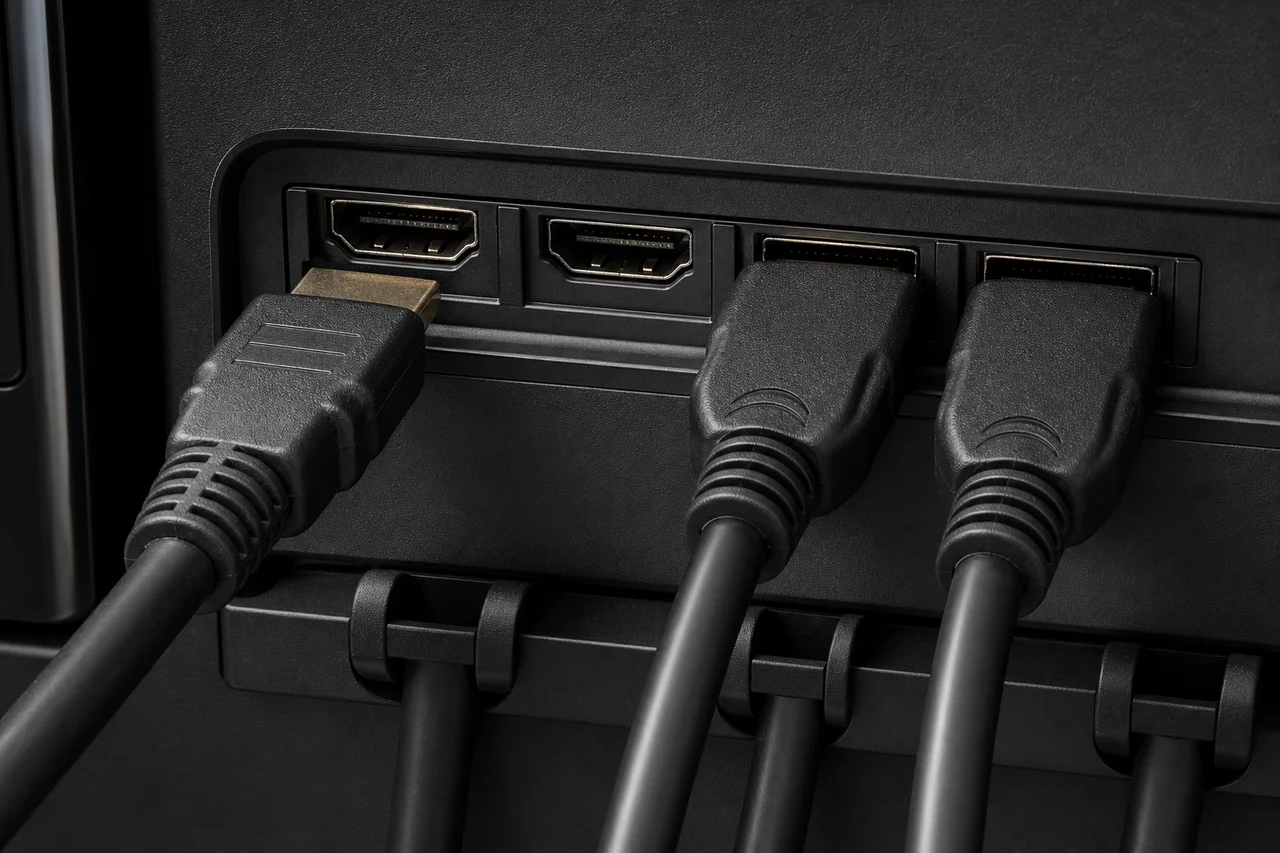
HDMI ports come in different versions with different capabilities. HDMI 2.0 handles 4K at 60Hz with HDR10. HDMI 2.1 adds support for 4K at 120Hz, eARC, and Variable Refresh Rate. Most streaming devices need HDMI 2.0 at minimum for full 4K HDR output.
Check your TV's specifications to identify which HDMI version each port supports. Some TVs offer HDMI 2.1 on only one or two ports while the remaining ports run at HDMI 2.0. Connecting your streaming device to the best available port ensures maximum quality.
Does the HDMI Cable Actually Matter?
Anúncios
HDMI cables absolutely matter, but not in the way expensive marketing suggests. A certified High Speed HDMI cable handles everything up to 4K at 60Hz with HDR. Ultra High Speed HDMI cables cover 4K at 120Hz and 8K signals for future needs.
Price does not indicate quality. A $7 certified cable performs identically to a $70 branded cable. Digital signals either arrive perfectly or fail completely — there is no middle ground where a more expensive cable produces a "better" picture.
How Do You Choose the Right HDMI Port?
Use the HDMI ARC or eARC port for your soundbar connection. Connect your primary streaming device to the highest-version HDMI port available. Gaming consoles benefit from HDMI 2.1 ports that support higher refresh rates and variable refresh rate technology.
- HDMI 1 (ARC/eARC): Reserve for soundbar or AV receiver
- HDMI 2 (2.1 if available): Primary streaming device
- HDMI 3: Secondary streaming device or Blu-ray player
- HDMI 4: Gaming console for highest refresh rate support
What Is HDMI ARC and Why Does It Matter?
HDMI Audio Return Channel sends audio from the TV back to a soundbar or receiver through the same HDMI cable that carries video. Without ARC, you need a separate optical audio cable running from the TV to your sound system.
ARC simplifies wiring and enables CEC control, letting one remote handle volume on external speakers. Enable ARC in your TV's audio settings and ensure both the TV and soundbar support the feature for automatic audio routing.
What Is the Difference Between ARC and eARC?
Enhanced ARC carries higher bandwidth audio signals that standard ARC cannot. Dolby Atmos via TrueHD and DTS:X require eARC for lossless transmission. Standard ARC compresses these formats, losing some audio fidelity in the process.
Both your TV and soundbar must support eARC for it to work. An Ultra High Speed HDMI cable rated for eARC connects the two devices. If either device lacks eARC, the connection falls back to standard ARC automatically.
Why Does My HDMI Connection Keep Dropping?
Intermittent HDMI dropouts usually stem from loose cable connections, damaged cable ends, or HDCP handshake failures. Reseat both ends of the cable firmly. Try a different HDMI cable to rule out cable damage. Power-cycle all connected devices to reset the HDCP authentication.
Long HDMI runs over 15 feet can cause signal degradation. Active HDMI cables or HDMI signal boosters solve distance-related issues. For runs exceeding 25 feet, fiber optic HDMI cables maintain signal integrity over much longer distances.
How Do HDMI Extenders Help Streaming Sticks?
Most streaming sticks include a short HDMI extender cable in the box. This cable serves two purposes: it provides clearance when adjacent HDMI ports are too close together, and it moves the stick away from the TV's heat zone for better thermal management.
Always use the extender if the stick blocks neighboring ports or runs warmer than expected. The extender also improves Wi-Fi reception by positioning the device slightly farther from the TV's metal frame, which can interfere with wireless signals.
What Is HDMI CEC and Should You Enable It?
Consumer Electronics Control allows devices connected via HDMI to control each other. Turning on your streaming device automatically powers on the TV and switches to the correct input. Your streaming remote controls TV volume through CEC without additional setup.
CEC occasionally causes unexpected behavior, like devices powering on when you do not want them to. If phantom power-ons bother you, disable CEC in the TV settings. Most users find the convenience outweighs the occasional quirk.
Can You Split HDMI to Multiple Displays?
HDMI splitters duplicate one source signal across two or more displays. A single streaming device can feed the same content to a living room TV and a bedroom TV simultaneously. Splitters cost $15 to $30 for basic models that handle 4K signals.
HDCP copy protection sometimes causes issues with splitters. Look for splitters that explicitly support HDCP 2.2 for 4K protected content. Cheap splitters may strip HDCP signals, resulting in blank screens on certain streaming apps.
Do You Need an HDMI Switch?
HDMI switches add extra input ports when your TV runs out. If you own a streaming stick, a gaming console, and a Blu-ray player but your TV only has two HDMI ports, a switch expands capacity without unplugging devices constantly.
Automatic HDMI switches detect which device powers on and route its signal to the TV. Manual switches require pressing a button to select the active input. Automatic switching provides the most seamless experience for multi-device setups.
How Do You Fix HDMI Handshake Problems?
HDMI handshake failures cause black screens, flickering, or purple tinting. The fix usually involves power-cycling devices in a specific order: turn off the TV first, then the streaming device, then power on the TV followed by the streaming device after thirty seconds.
Persistent handshake problems may require changing the HDMI color format in your streaming device settings. Switching from automatic to a specific format like YCbCr 4:2:0 or RGB Limited often resolves stubborn compatibility issues between devices.
HDMI Troubleshooting Checklist
Start with the simplest fixes before replacing hardware. Reseat cables, try different ports, power-cycle devices, and check settings. Most HDMI problems resolve through these basic steps without spending money on new cables or equipment.