How to Set Up a Streaming Device: Complete Guide
Step-by-step guide to setting up any streaming device. From HDMI connection to Wi-Fi setup, app installation, and account linking in under 10 minutes.
Anúncios
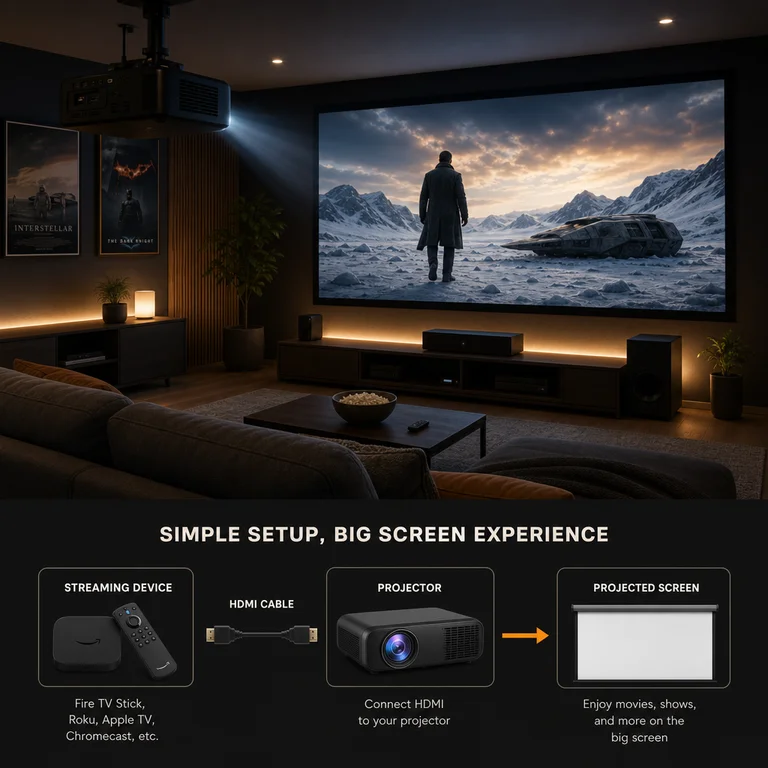
Setting up a streaming device takes less time than ordering takeout. Whether you bought a Roku, Fire Stick, Chromecast, or Apple TV, the process follows a similar pattern: plug it in, connect to Wi-Fi, sign into your apps, and start watching.
What Do You Need Before Starting?
Anúncios
Gather a few essentials before unboxing. You need a TV with a free HDMI port, a Wi-Fi network with its password handy, and a power outlet near your TV. Most streaming sticks include a USB power cable and wall adapter in the box.
Having your streaming service login credentials ready speeds up the process. Write down your Netflix, Hulu, Disney+, and other account emails and passwords before starting. This avoids the frustrating hunt for forgotten passwords mid-setup.
Step One: Connect the Device to Your TV
Anúncios
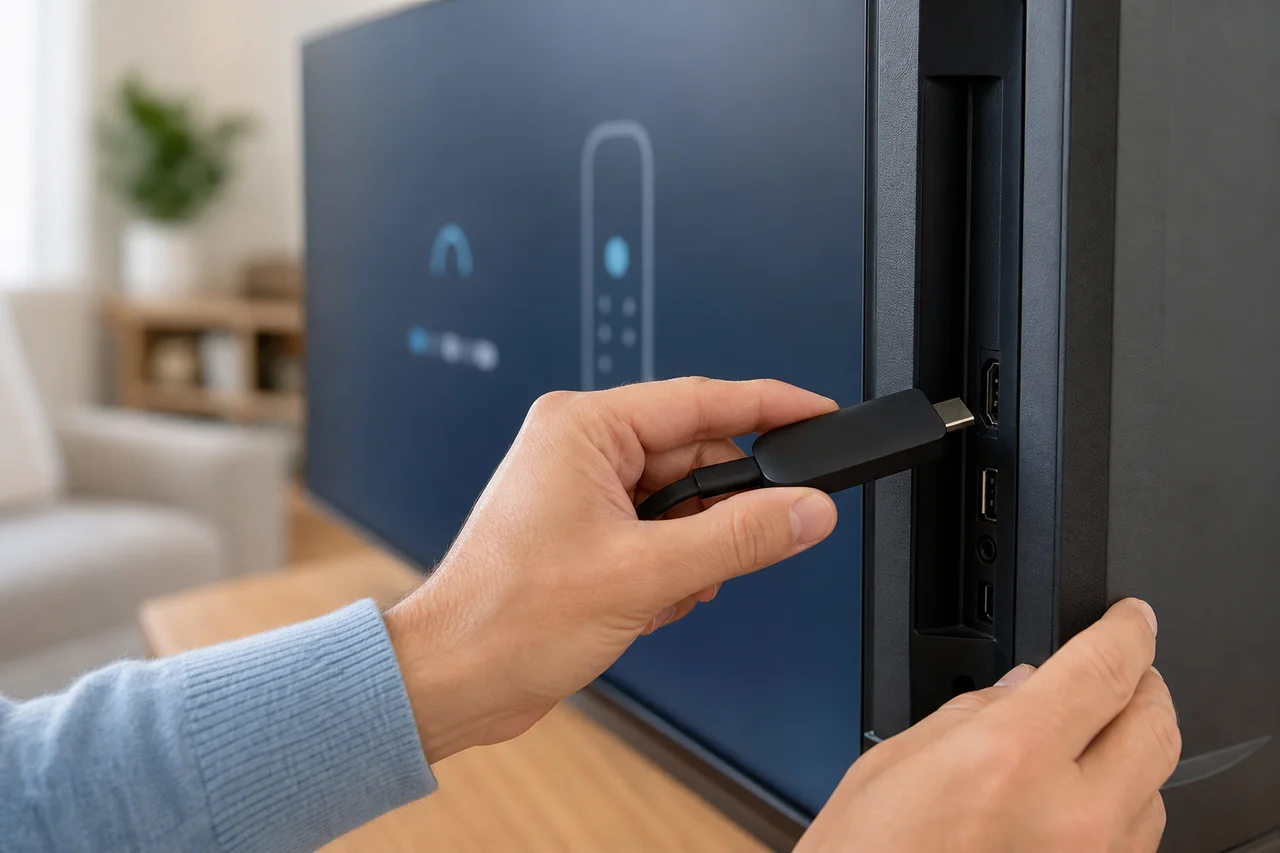
Plug the streaming stick into any available HDMI port on your television. Note which HDMI port number you use — you will need to select that input on your TV. If the stick blocks an adjacent port, use the included HDMI extender cable for extra clearance.
Connect the USB power cable to the streaming device and plug the other end into the included wall adapter. Avoid using your TV's USB port for power unless the manufacturer specifically confirms it provides sufficient wattage.
How Do You Switch to the Right HDMI Input?
Press the Input or Source button on your TV remote to cycle through available inputs. Select the HDMI port matching where you plugged in the streaming device. The setup screen should appear within a few seconds.
Some TVs with HDMI-CEC automatically switch to the new device when it powers on. If your TV supports CEC, the streaming stick may trigger the correct input switch without any manual intervention.
Pairing the Remote Control
Most streaming device remotes pair automatically during first boot. Hold the remote close to the device and follow on-screen instructions. If automatic pairing fails, press and hold the pairing button on the remote for five to ten seconds.
Bluetooth remotes need line-of-sight only during initial pairing. Once connected, they work from anywhere in the room without pointing directly at the TV. Infrared remotes require a clear path to the device at all times.
Connecting to Your Wi-Fi Network
The setup wizard prompts you to select your Wi-Fi network from a list of detected signals. Choose your home network and enter the password using the on-screen keyboard. Select the 5GHz band if available for faster, more stable streaming performance.
Typing passwords with a TV remote is tedious. Many devices offer a companion phone app that lets you type credentials on your phone's keyboard instead. Roku, Fire TV, and Google Home apps all support this shortcut.
- Select your Wi-Fi network from the detected list
- Enter your network password carefully
- Choose 5GHz band for better streaming performance
- Wait for the connection test to confirm success
- Download any pending system updates before continuing
Should You Update the Firmware First?
Always accept firmware updates during initial setup. These updates patch security vulnerabilities, add new features, and improve app compatibility. The download usually takes two to five minutes depending on your internet speed.
The device may restart once or twice during the update process. Leave it alone until the home screen appears. Interrupting a firmware update can cause issues that require a factory reset to resolve.
How Do You Sign Into Your Streaming Accounts?
Each streaming app requires separate sign-in. Open the app, select Sign In, and you will either enter credentials directly or receive an activation code. Activation codes let you type your login on a phone or computer instead of the TV remote.
Netflix uses netflix.com/activate, Disney+ uses disneyplus.com/begin, and most services follow a similar pattern. Type the code shown on your TV screen into the website on your phone to link the account instantly.
Setting Up Voice Control and Assistants
Voice assistants activate during the setup process on most devices. Fire Stick configures Alexa, Chromecast sets up Google Assistant, and Apple TV enables Siri. Roku's voice search works without a separate assistant account.
Test voice control by pressing the microphone button on the remote and saying a show name. If the device responds correctly, voice search is configured. Some features require linking additional accounts through companion phone apps.
Configuring Display and Audio Settings
Navigate to Settings, then Display or Video, to adjust resolution. Set the output to match your TV's maximum capability — usually 4K at 60Hz for modern televisions. Enable HDR and Dolby Vision if your TV supports these formats.
Audio settings default to stereo. If you use a soundbar or surround system, switch the audio output to Surround Sound or Passthrough mode. Enable Dolby Atmos if your audio equipment supports spatial audio.
What If the Setup Gets Stuck?
Restart the device by unplugging the power cable for ten seconds and plugging it back in. Most setup issues resolve with a simple power cycle. If problems persist, perform a factory reset using the physical button on the device.
Wi-Fi connection failures are the most common setup problem. Move your router closer to the TV, reduce interference from other devices, or try connecting to a different network band. A wired Ethernet adapter eliminates wireless issues entirely on supported devices.
How Do You Organize Apps After Setup?
Rearrange your app tiles so frequently used services appear first. Roku and Fire TV let you move apps by highlighting them and pressing an options button. Google TV and Apple TV support similar customization through long-press actions.
Delete pre-installed apps you will never use to free up storage and reduce home screen clutter. Every platform allows uninstalling or hiding apps you do not want, keeping your interface clean and focused on services you actually use.
Setting Up Parental Controls
Enable parental controls in the device settings if children use the TV. Each platform offers PIN-protected content restrictions based on age ratings. Set purchase PINs to prevent accidental app or movie rentals from the streaming store.
Individual streaming apps also maintain separate parental controls within their own settings. Configure both the device-level and app-level restrictions for comprehensive protection across all viewing options.
Your Streaming Device Is Ready
The entire setup process typically takes five to fifteen minutes from unboxing to watching your first show. Take a few extra minutes to customize your home screen layout, adjust display settings, and configure parental controls for a polished experience from day one.