Wi-Fi Optimization for Streaming: Stop Buffering Now
Optimize your Wi-Fi for buffer-free streaming. Router placement, band selection, mesh networks, and speed tips for 4K streaming on Roku, Fire Stick, and more.
Anúncios
Buffering kills the streaming experience faster than anything else. The culprit is almost always your Wi-Fi setup rather than the streaming device itself. A few targeted adjustments to your network can eliminate buffering permanently.
Why Does Streaming Buffer Even With Fast Internet?
Anúncios
Your internet plan might promise 200 Mbps, but the Wi-Fi signal reaching your streaming device could deliver only a fraction of that speed. Walls, distance, interference from other electronics, and network congestion all degrade wireless performance between your router and TV.
Multiple devices sharing the same network compound the problem. Smartphones, tablets, laptops, smart home gadgets, and other streaming devices compete for bandwidth. During peak household usage, everyone fights for the same finite connection.
Where Should You Place Your Router?
Anúncios
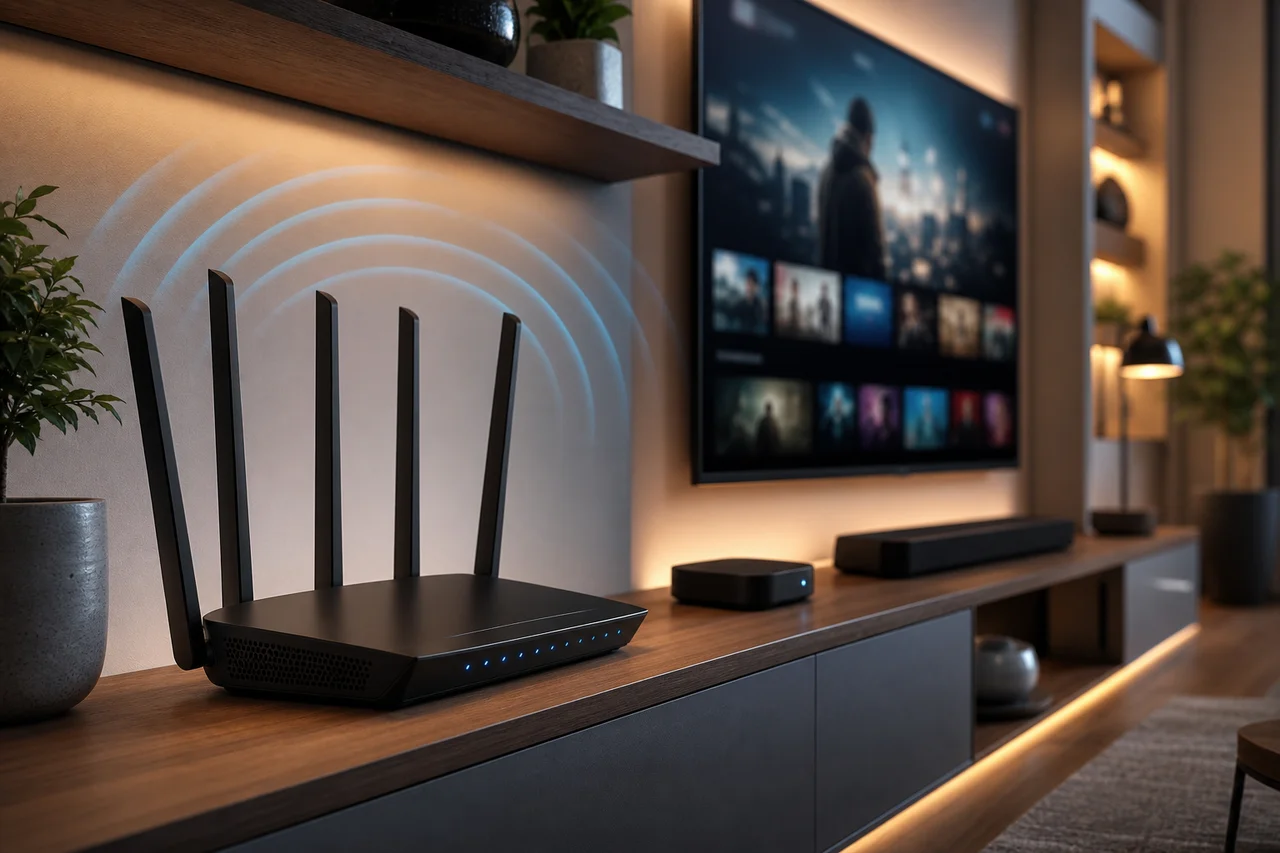
Position your router centrally in your home, elevated on a shelf or mounted on a wall. Avoid placing it inside cabinets, behind TVs, or on the floor. Wi-Fi signals radiate outward and downward, so a high central position maximizes coverage.
Keep the router away from microwaves, cordless phones, baby monitors, and Bluetooth devices. These electronics operate on frequencies that interfere with Wi-Fi signals, causing intermittent drops that manifest as buffering during streaming sessions.
Should You Use the 2.4GHz or 5GHz Band?
Connect streaming devices to the 5GHz band whenever possible. This frequency delivers faster speeds with less interference from neighboring networks and household electronics. The trade-off is shorter range, which matters less when the router sits in the same room.
Reserve the 2.4GHz band for smart home devices, older gadgets, and rooms far from the router. The 2.4GHz signal travels farther through walls but carries less bandwidth and suffers more congestion in dense apartment buildings.
- 5GHz: Faster speeds, shorter range, less interference — ideal for streaming
- 2.4GHz: Longer range, slower speeds, more congestion — backup option
- 6GHz (Wi-Fi 6E): Fastest speeds, shortest range — premium devices only
- Split bands into separate network names for easy device management
How Fast Should Your Internet Be for Streaming?
A single 4K stream requires about 25 Mbps. Multiple simultaneous streams multiply that requirement. A household with three TVs streaming 4K content simultaneously needs at least 75 Mbps of real-world throughput reaching those devices.
Test your actual Wi-Fi speed at the streaming device location, not at the router. Run a speed test on your phone next to the TV to check real performance. The gap between advertised internet speed and actual Wi-Fi delivery often surprises people.
Do Mesh Wi-Fi Systems Help With Streaming?
Mesh networks eliminate dead zones by placing multiple access points throughout your home. Each node communicates with the others, creating a blanket of consistent coverage. For homes over 1,500 square feet, mesh systems dramatically improve streaming reliability in distant rooms.
Popular mesh systems from Eero, Google Nest, TP-Link Deco, and Netgear Orbi start around $150 for a three-pack. The investment pays off immediately for households frustrated by buffering in bedrooms or home offices far from the main router.
Is a Wired Ethernet Connection Better?
Ethernet delivers the most reliable streaming connection with zero interference. Streaming devices like Apple TV 4K and Roku Ultra include Ethernet ports. USB-to-Ethernet adapters add wired connectivity to Fire Sticks and Chromecast devices.
Running Ethernet cables to every TV may not be practical. Powerline adapters use your home's electrical wiring to carry network signals between rooms, offering a middle ground between wireless inconsistency and the complexity of running dedicated cables.
What Router Settings Improve Streaming Quality?
Enable Quality of Service (QoS) settings on your router to prioritize streaming traffic. QoS assigns higher priority to video data, preventing file downloads and software updates on other devices from stealing bandwidth during your show.
Keep your router firmware updated. Manufacturers release updates that improve performance, fix security vulnerabilities, and optimize wireless protocols. Most modern routers support automatic updates that apply during off-peak hours.
Can Too Many Smart Devices Slow Streaming?
Every connected device consumes a small slice of your router's processing capacity and bandwidth. Homes with 30 or more smart devices — lights, cameras, thermostats, speakers — can overwhelm budget routers even when those devices use minimal bandwidth individually.
Upgrading to a router that supports more simultaneous connections helps. Wi-Fi 6 routers handle many devices more efficiently through technologies like OFDMA and MU-MIMO that serve multiple devices simultaneously rather than sequentially.
How Do You Check for Channel Congestion?
Wi-Fi analyzer apps scan nearby networks and show which channels are crowded. Switch your router to a less congested channel in its settings. The 5GHz band offers more non-overlapping channels, making congestion easier to avoid than on 2.4GHz.
Apartment buildings suffer the worst channel congestion. Dozens of neighboring networks compete on the same frequencies. Using the 5GHz or 6GHz band and selecting a clean channel significantly improves streaming performance in dense housing.
Should You Restart Your Router Regularly?
Restarting your router every few weeks clears memory caches and refreshes connections. Some users set automatic reboot schedules through their router's settings or a simple outlet timer. This low-effort maintenance prevents gradual performance degradation.
If buffering starts suddenly on a previously working setup, restart the router first. Most temporary network issues resolve with a simple power cycle. Unplug the router for thirty seconds, then plug it back in and wait two minutes before testing.
What About Wi-Fi Extenders and Repeaters?
Wi-Fi extenders rebroadcast your router's signal to reach distant rooms. They help in a pinch but cut your bandwidth in half because they communicate with the router and your devices on the same channel. Mesh systems perform this job far more efficiently.
If you already own an extender and streaming works acceptably, keep using it. Upgrading to mesh makes sense when the extender creates noticeable speed drops or forces you to manually switch between network names as you move through your home.
Quick Fixes When Streaming Starts Buffering
Lower the streaming resolution temporarily from 4K to 1080p in the app settings. Pause other downloads and updates on the network. Move closer to the router if using a portable device. These immediate actions restore smooth playback while you troubleshoot the underlying issue.